
Tedious forms, filled in one click.
FormCarbon fills the form you have open with a profile you've saved. Press the toolbar button or the keyboard shortcut, and the preview shows what goes into each field. Check it and press Fill. It never submits the form, and Undo puts the fields back as they were.
Unlimited fills, on the free plan too.
Checked against 53 sample forms in 9 languages. Every one is public, so you can try the same forms yourself. Try it on sample forms
How FormCarbon works
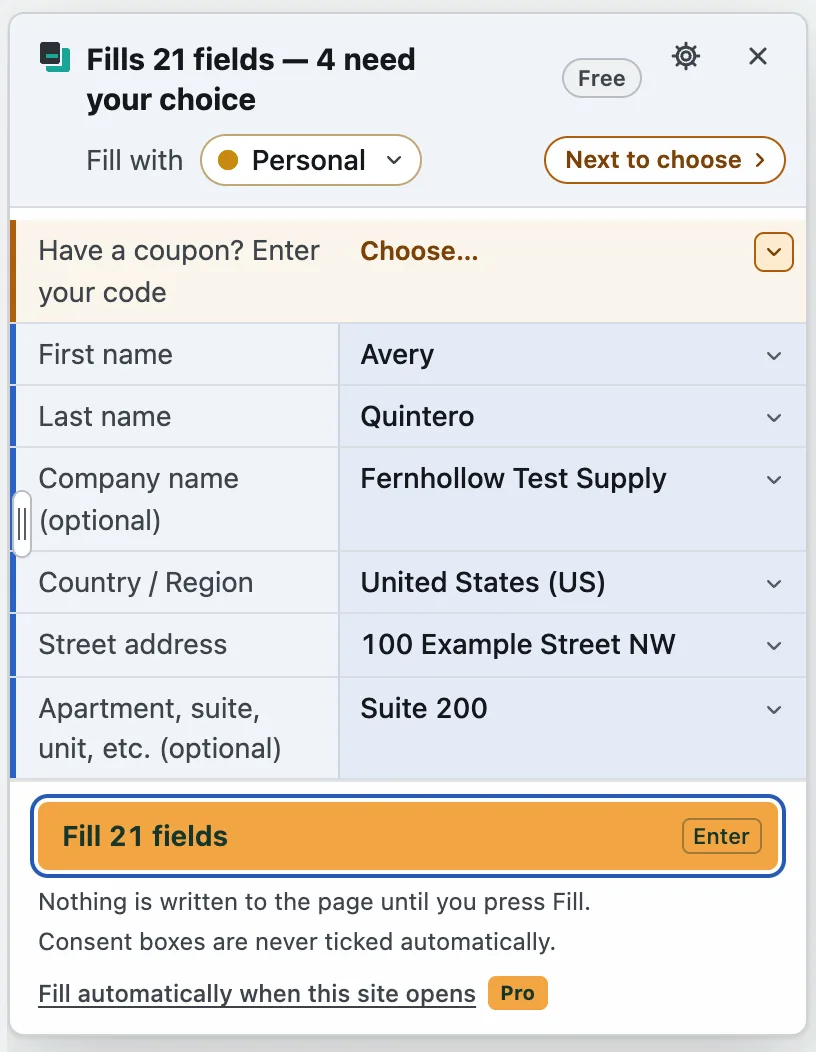
Press to fill. It never submits.
Open it with the toolbar button or the shortcut, and press Enter to fill. Focus then moves to the submit button, so you can check the form and send it yourself. FormCarbon never presses it.
See it first, undo it later
Nothing is written to the page until you press Fill. You can change any row or leave it empty. After filling, Undo puts the fields back (fields you have edited since are left alone), and Fill again puts the values back in.
Your data stays in your browser
Profiles and settings are stored only on this device, never in Chrome sync. No account, no analytics, no ads. The only network requests are for the Pro license, and without a key FormCarbon makes none.
How it works
-
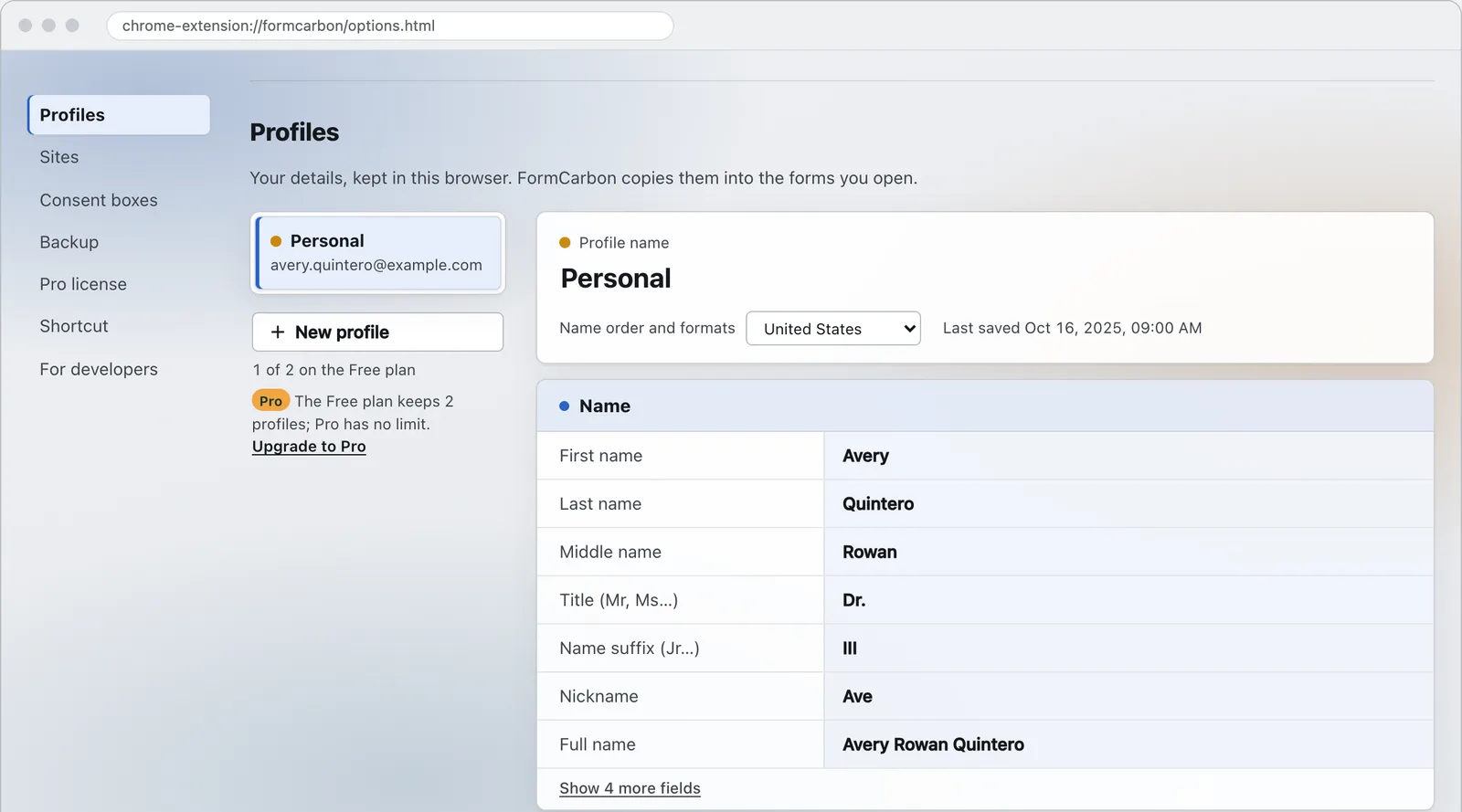
Save your details
On the settings page, save your name, email, phone and mobile numbers, address, work details and more as a profile. Or fill a form by hand and turn it into a profile. Keep separate profiles, such as one for home and one for work.
-
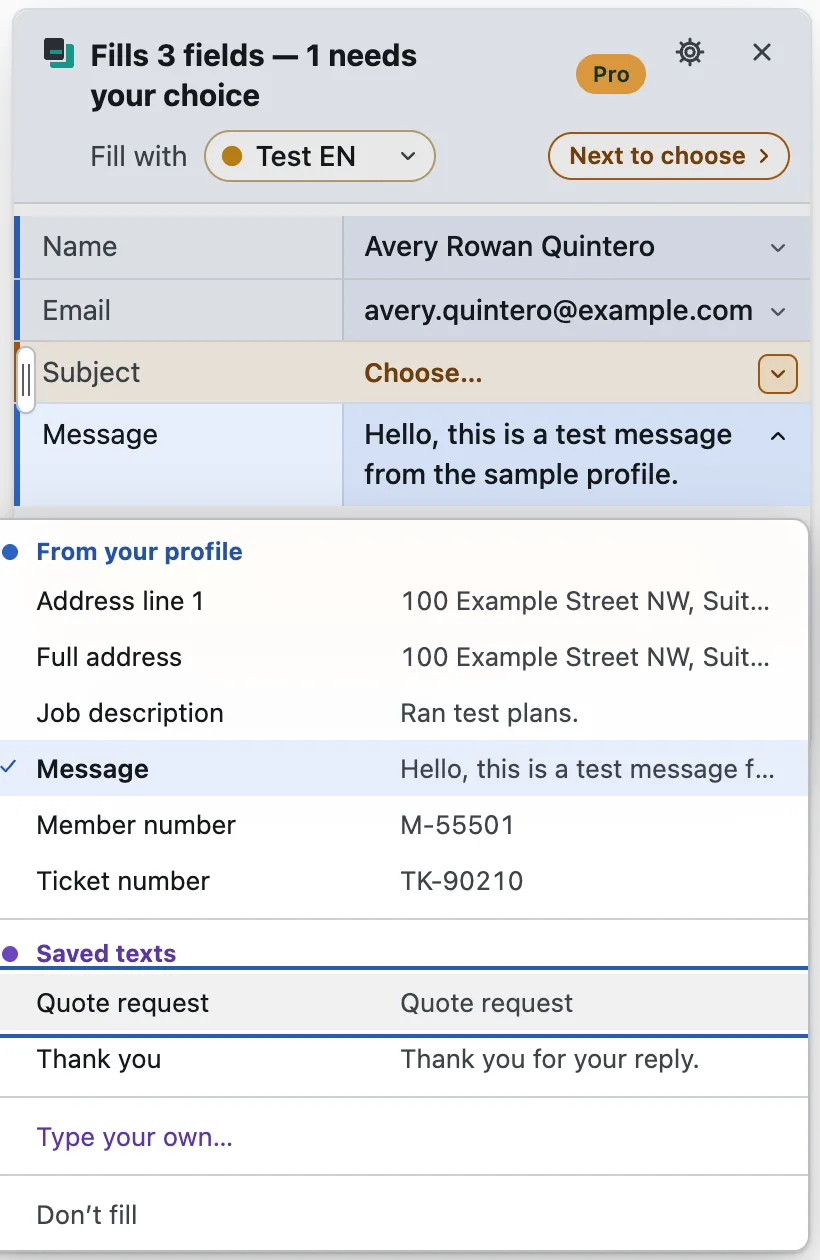
Press the button on a form and check
On a page with a form, press the button or the shortcut and the preview lists the value for each field. Blue rows are filled by FormCarbon; orange rows are yours to choose. Press a row to open its menu and pick a field from your profile, one of the field’s own options, a saved text (its first line is shown), your own words, or Don’t fill.
-
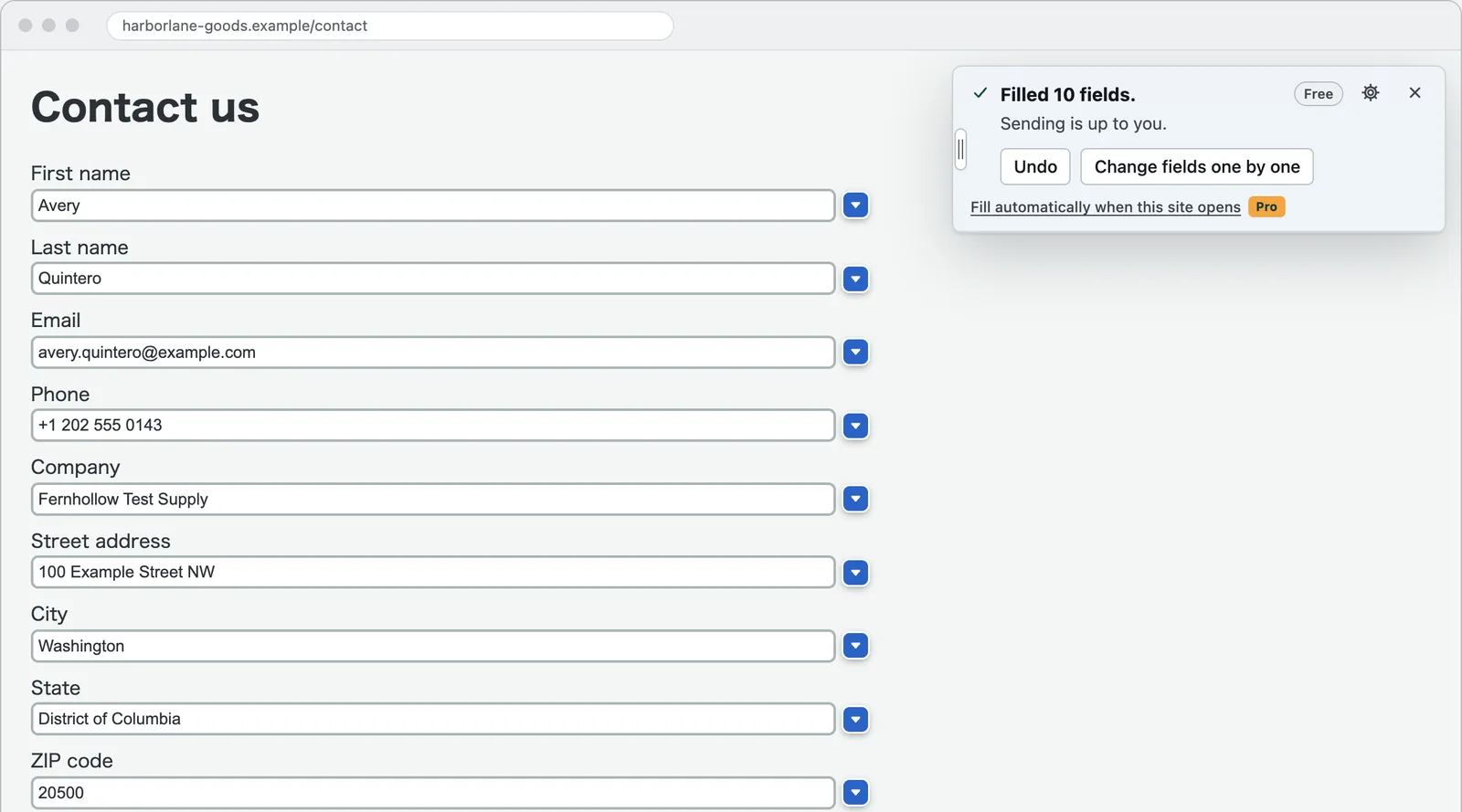
Fill, then send it yourself
Press Enter or Fill. Each filled field gets a mark next to it; press it to change just that field. The panel’s Change fields one by one button does the same, and Undo stays within reach. You decide whether to send, once you have checked.
Checked against forms like these
Every time the fill engine changes, we run it against 53 sample forms in 9 languages (1,010 fields) and check three things: each value lands in the right field, fields that must stay empty stay empty, and nothing gets submitted.
The forms are our own, so this is not a promise about every real site. But all of them are public, and you can try the same ones yourself.
Split or single, filled to fit
The set includes 5 forms with a postal code split into boxes and 8 with a phone number in separate boxes. Whether a form wants first and last name apart or as one line, the profile value is shaped to fit.
Furigana and romanized names
6 forms ask for furigana (the reading of a Japanese name) and 4 for a romanized name. FormCarbon fills each from the matching part of your profile. It never guesses a reading from kanji.
Local conventions
Field labels are read in 9 languages (Vorname and Nachname, Prénom and Nom, 성 and 이름, and more). Name order, address layout and date format follow the region, so a German birth date goes in as 17.04.1990.
Forms built differently
3 React, 2 Vue, 2 Shadow DOM and 2 multi-step forms are in the set, so forms that look ordinary but are built differently are checked too.
Fields that must stay empty
23 forms with a password field, 7 with card numbers, 20 with hidden fields, 16 with honeypots (hidden fields that catch bots) and 4 with a field that submits when changed. That is 358 fields in all, and the current result is 0 filled and 0 submissions.
And when something doesn’t fit
On real sites, some fields won’t be recognized. They show up in the preview as orange rows that ask you to choose, so you can pick a value for that row or leave it empty. Nothing is written until you press Fill, Undo puts the form back, and nothing is ever submitted.
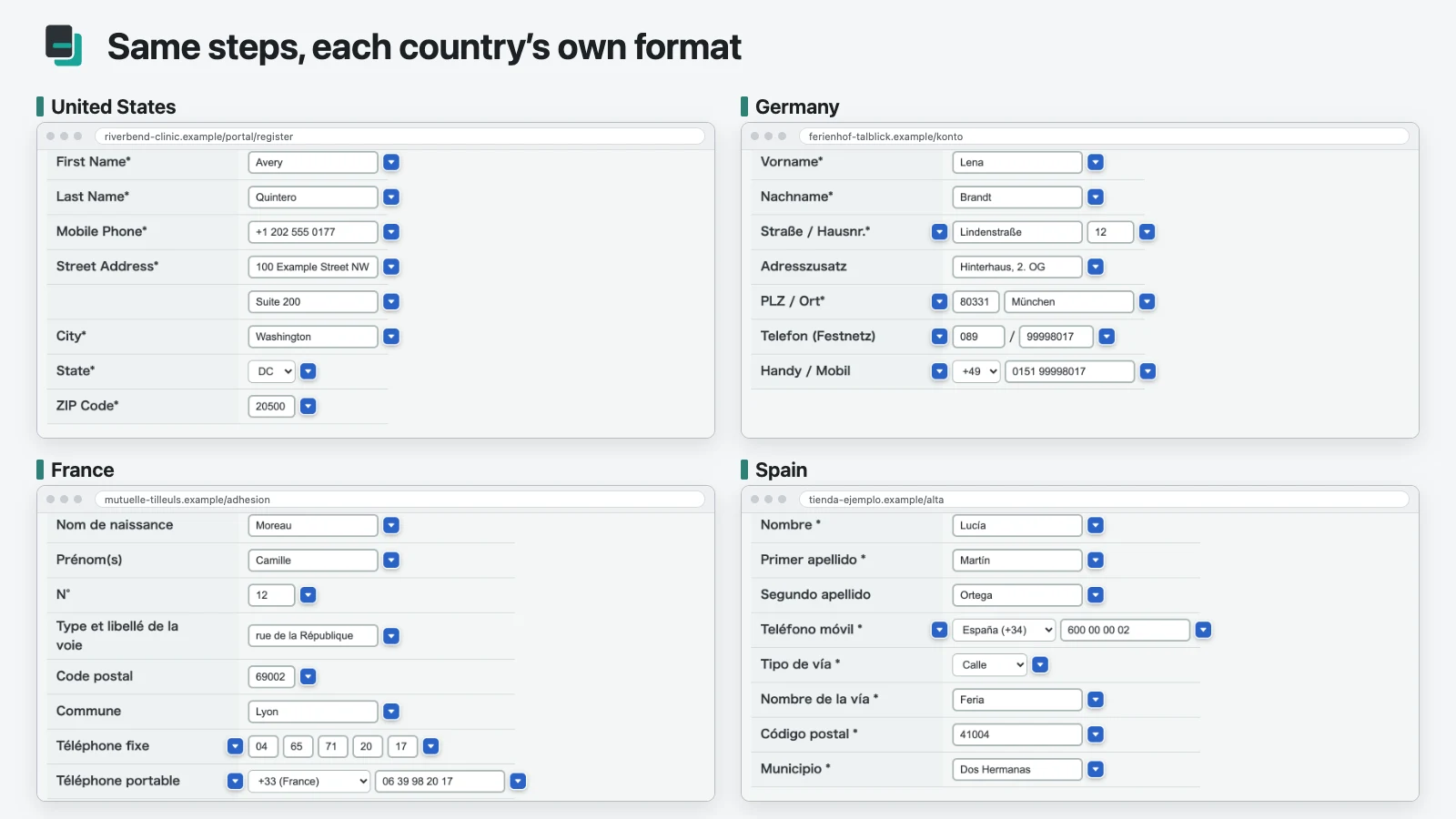
All 53 forms are public. Pressing their submit button sends nothing anywhere.
What it never fills
Some parts of a form should never be touched automatically. FormCarbon does not fill these on its own, and never submits.
- Fields you cannot see
- Only visible fields are filled. Hidden fields and bot traps are folded away at the end of the list.
- Passwords, card numbers, one-time codes and files
- Profiles cannot hold them, and FormCarbon never fills them from a profile. The only exception is a test password or test card number you pick in the preview in developer mode (Pro, see below).
- Consent, terms and newsletter boxes
- Never ticked by default. Only the boxes you tick in the preview are filled. With Pro’s automatic consent turned on, only the consent a form requires (terms, privacy) is ticked, never optional mailings.
- Submitting
- Never. It moves focus to the submit button and stops. Fields that would send the form when changed are left alone too.
- Frames from other sites (iframes)
- Not supported. FormCarbon works on the top page only and shows how many fields it skipped inside frames.
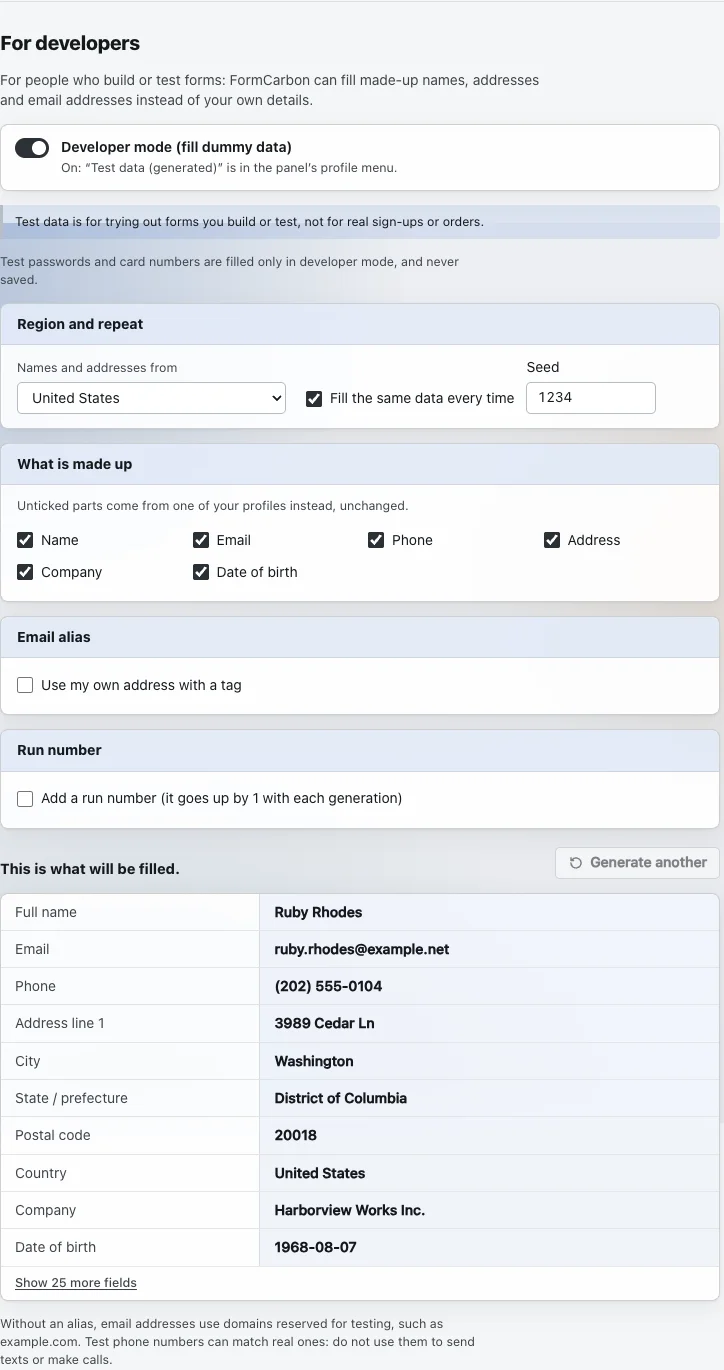
Developer mode For testing
For people who build or test forms, as part of Pro (free to try for 14 days after you install). Turn it on in the settings, and the preview offers made-up test data (names, addresses, email addresses and more) instead of your own details. Without an email alias, generated addresses use domains reserved for testing, such as example.com.
- Made-up names, addresses, phone numbers, companies and dates of birth
- A switch to fill only the required fields
- A choice of region, and a fixed seed for the same data every time
- An email alias (your own address with a +tag) and a run number
- A throwaway test password for new-password fields and card numbers that payment providers publish for testing
Test passwords and card numbers go in only when you pick them in the preview, and are never saved. Do not use them for real sign-ups or orders.
Free and Pro
There is no limit on how many times you fill. Pro saves you more steps on the sites you use often.
| Feature | Free | Pro |
|---|---|---|
| Fills | Unlimited | Unlimited |
| Profiles | 2 | Unlimited |
| Every field type (name, furigana, contact, address, work, date of birth and more) | Included | Included |
| Preview and Undo | Included | Included |
| On / off per site | Included | Included |
| The profile you last used on each site | Included | Included |
| Consent boxes (tick them together in the preview) | Included | Included |
| Saved texts | 3 per profile | 50 per profile |
| Own fields | 3 per profile | Unlimited |
| Theme (light and dark) | Included | Included |
| Panel language (English, Japanese and 7 more) | Included | Included |
| Backup to a file and restore (plain JSON) | Included | Included |
| Per-site memoryRemembers the options, saved texts and field changes you pick, and fills them from the start next time. On Free you can still pick them for that fill. | Not included | Included |
| Fill on open (allowed per site) | Not included | Included |
| Tick the consent a form requires automaticallyIt never ticks optional mailings such as newsletters. | Not included | Included |
| Test data (developer mode)Made-up names, addresses, email addresses and more, with a choice of region, a fixed seed, a run number, an email alias, and test passwords and cards. | Not included | Included |
| Passphrase-protected backupsOpening a passphrase-protected file works on Free too. | Not included | Included |
Every Pro feature works for 14 days after you install. No key is needed.
Compared with other tools
Already using Fake Filler or Form Filler? See when each one is the better fit, including when it is not FormCarbon: Fake Filler or FormCarbon, Form Filler or FormCarbon.
Questions
Which sites does it work on?
Forms on ordinary web pages. It cannot run on Chrome’s own pages (chrome://), the Chrome Web Store, PDFs or files on your computer (file:), and says why when you try.
Does it fill forms inside an iframe from another site?
Not in this version. It works on forms in the top page. Fields inside frames are counted under the list as not supported.
Where is my data stored?
Only in this browser’s extension storage (chrome.storage.local), and it is never sent to Quillfold. It is not synced with Chrome, so to move it to another device, export a backup from the settings page. Your data is not encrypted (the same as addresses saved in the browser).
What permissions does it use?
It always uses three: activeTab, scripting and storage, and reads only the tab where you press the button or the shortcut. Only for a site where you turn on Pro’s Fill on open does Chrome ask you to allow access to that one site (you can decline). Turning it off removes the access.
Can I open it with a keyboard shortcut?
Yes. The shortcut does the same as the toolbar button, and pressing it again fills the form. You can see and change the key at chrome://extensions/shortcuts; the current key is also shown under Shortcut in the settings.
My name and address are written differently on forms in other countries. What should I do?
FormCarbon fills values exactly as you saved them; it does not translate or transliterate. Save a second profile written the way those forms expect, and switch to it in the panel. Separate furigana and romanized name fields are there for Japanese forms that ask for them.
Can I change the panel’s language?
Yes. By default it follows Chrome’s language, and you can pick one of 9 languages under Language in the settings. Languages other than English and Japanese are translated from English, and the settings page says so.
What happens to my data if I uninstall it?
Removing the extension also removes your saved profiles and settings from the browser. To keep them, export a backup from the settings page first.
Extensions by Quillfold
 TablePick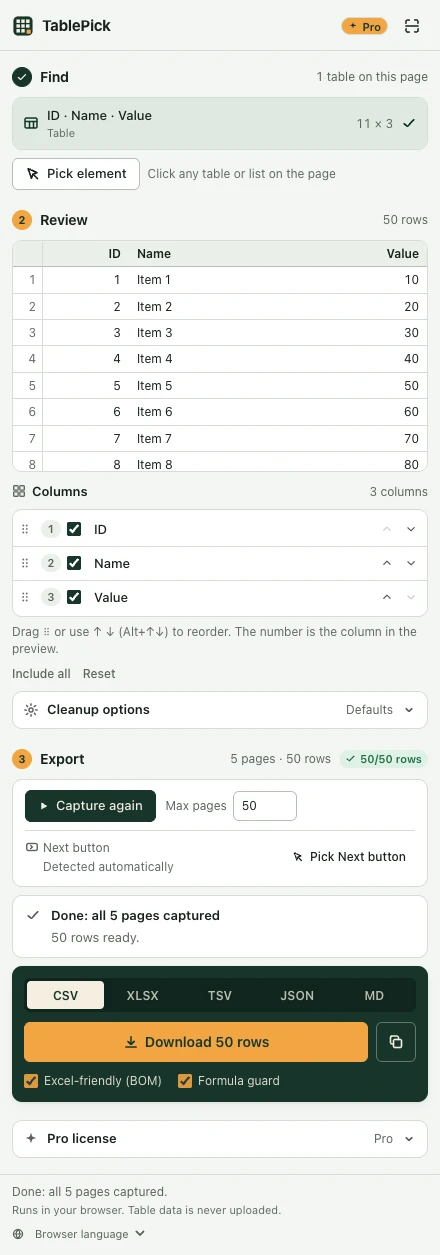
Something not working?
Send the page URL and what the panel showed to support@quillfold.dev. What to include