
Export any table on the web to Excel.
TableHarvest finds the tables, lists and grids on the page you are on, follows Next and “Load more” when the data spans pages, and checks what it captured against the total the page states. Then it downloads XLSX, CSV, TSV, JSON or Markdown.
Not in the Chrome Web Store yet. The listing will be linked here when it is live.
- 100% local
Your tables are read, cleaned and exported inside your browser. Table data never leaves your computer.*
* The only network request is a license check for Pro users (key and activation ID only). The free version makes no network requests at all.
- Reads only the tab you click
Permissions: activeTab, sidePanel, scripting, storage. No access to all websites.
- No account, no tracking
Install it and use it. There are no analytics in the extension or on this site.
How it works
-
Find
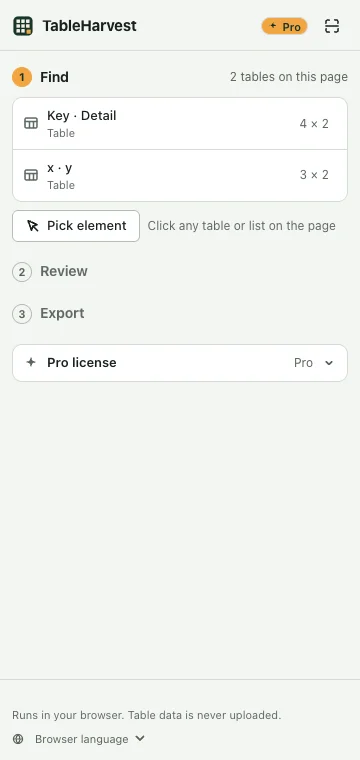
Click the toolbar button. The side panel lists every table, list and grid on the page; hover one to see it highlighted. If the one you want is missing, click it on the page.
-
Review
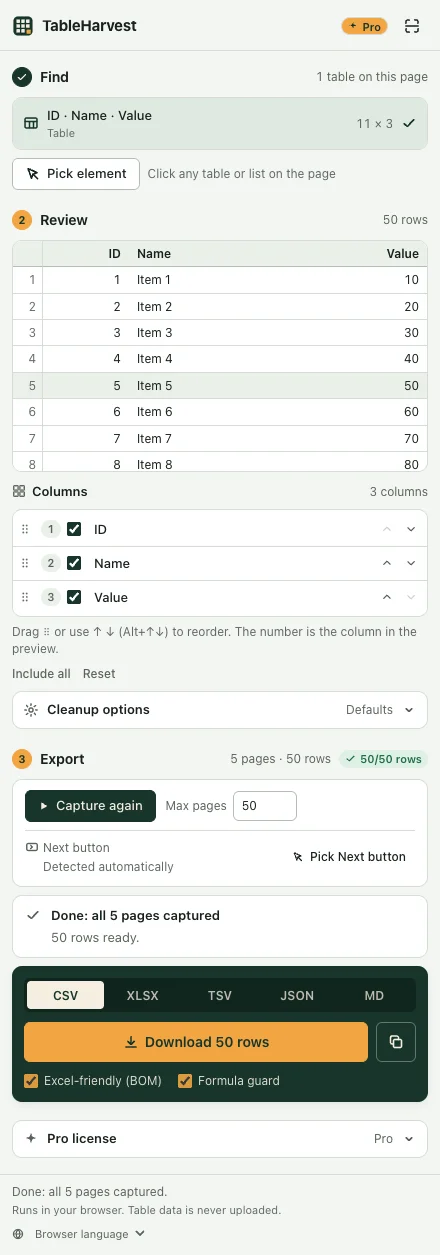
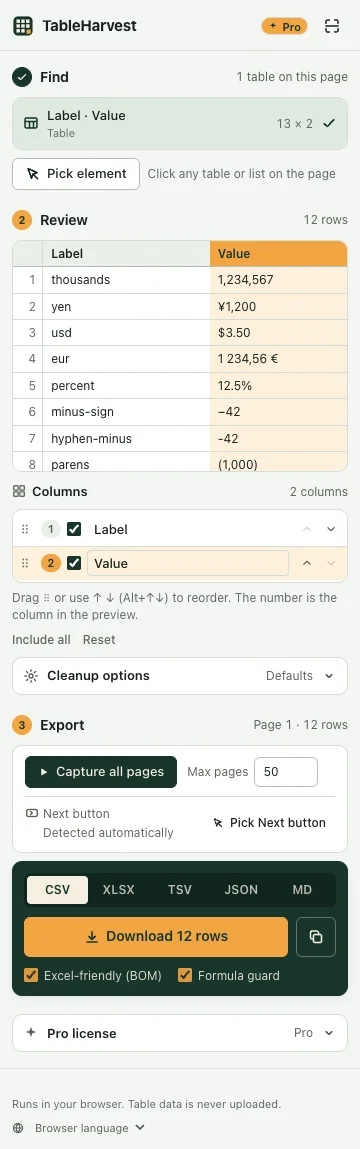
Preview the first 50 rows. Rename, reorder or hide columns. Your choices are remembered for the site.
-
Export
Download XLSX, CSV, TSV, JSON or Markdown, or copy it for pasting into a spreadsheet. If the table spans pages, capture all pages first.
Built for the tables that go wrong
- Data across pages
- Follows Next buttons, page numbers, “Load more” and infinite scroll. Next is recognised in about 25 languages; if it is not found, click the button once and TableHarvest remembers it for that site.
- Merged cells and multi-row headers
- Cells merged with rowspan or colspan are filled into every row they cover, and headers spread over several rows become one, like “2024 / Q1 / Revenue”, so each value lands in the right column.
- Grids that draw only what is on screen
- Spreadsheet-style grids that render a few dozen rows at a time are scrolled and collected row by row, so the export has all of them.
- Counts you can check
- When the page states a total, such as “Showing 1 to 10 of 57 entries”, the rows captured are compared with it and the panel shows whether they match.
- A report you can keep
- XLSX downloads include a Report sheet: where the data came from, when, how many pages and rows, whether the count matched, and why the capture stopped.
- Stops with a reason
- If a capture stops early, the panel says why and what to try next. Rows already captured stay ready to download.
- What you see is what you get
- Hidden columns and screen-reader-only text are left out, as on the page. Footnote markers like [1] can be removed.
- Opens cleanly in Excel
- CSV includes a BOM so accented and Asian text open correctly, and cells that start with = + − @ are neutralised so they cannot run as formulas. XLSX is always there too.
- Tables inside other parts of the page
- Looks inside open shadow DOM and same-origin frames. For a frame from another site, it tells you to open that frame on its own.
Free and Pro
The free plan has no row limit and every format. Pro removes the page limit on multi-page captures and adds data cleanup.
| Feature | Free | Pro |
|---|---|---|
| Rows from the page you are on | No limit | No limit |
| XLSX, CSV, TSV, JSON, Markdown and copy | Included | Included |
| Pages per capture: Next, page numbers, Load more, infinite scroll | Up to 3 | No limit |
| Every row of grids that scroll | Included | Included |
| Pick a table or Next button on the page; remembered per site | Included | Included |
| Rename, reorder and hide columns | Included | Included |
| Row-count check and stop reasons | Included | Included |
| Remove repeated rows and footnote markers | Included | Included |
| Merged cells and multi-row headers | Included | Included |
| Report sheet in XLSX (source, time, pages, count check) | Included | Included |
| Remove duplicates by a key column | Not included | Included |
| Clean up numbers: currency, separators, % | Not included | Included |
| Convert dates to ISO (2026-10-06) | Not included | Included |
Rows you capture can always be downloaded, on either plan. The free limit is on how many pages one capture follows (3), not on your data.
Pro removes the page limit and adds data cleanup. See Pro plans and prices.
Compared with other tools
Already using Instant Data Scraper? See when each one is the better fit, including when it is not TableHarvest.
Questions
Does my data leave the browser?
No. Finding, reading and converting tables all happen in your browser, and table data is never sent anywhere. The only network request is a license check with Polar, which sells TableHarvest Pro, and only if you enter a Pro license key: it sends the key and two identifiers (the Polar organization and this activation), never table data or the pages you visit. See the privacy policy.
Do I need an account?
No. The free plan needs nothing. Pro is a license key: buy it on the TableHarvest Pro page and paste it into the side panel. Payment is handled by Polar; TableHarvest itself has no accounts.
Why doesn’t it ask to “read and change all your data on all websites”?
It only gets access to a tab when you click its toolbar button. When a multi-page capture has to load a new page, it asks for that one site, at that moment, and you can decline.
Is there a row limit on the free plan?
No. The free plan exports every row on the page in every format. Multi-page captures follow up to 3 pages each time.
Excel shows garbled characters when I open the CSV.
CSV downloads include a BOM by default, which tells Excel the file is UTF-8. If you turned “Excel-friendly (BOM)” off, turn it back on, or download XLSX instead.
Which pages can’t it read?
Tables drawn on a <canvas>, content inside closed shadow DOM, and frames from another site. For those frames, the panel tells you to open the frame on its own.
Does Pro work offline?
Yes. Once your key is verified, Pro keeps working for up to 14 days without a connection. It re-checks at most once every 24 hours when you are online.
When can I install it?
TableHarvest is not in the Chrome Web Store yet. This page will link to the listing when it is live.
Something not working?
Send the page URL and what the panel said to support@quillfold.dev. What to include. Guides for common problems: getting a web table into Excel.